
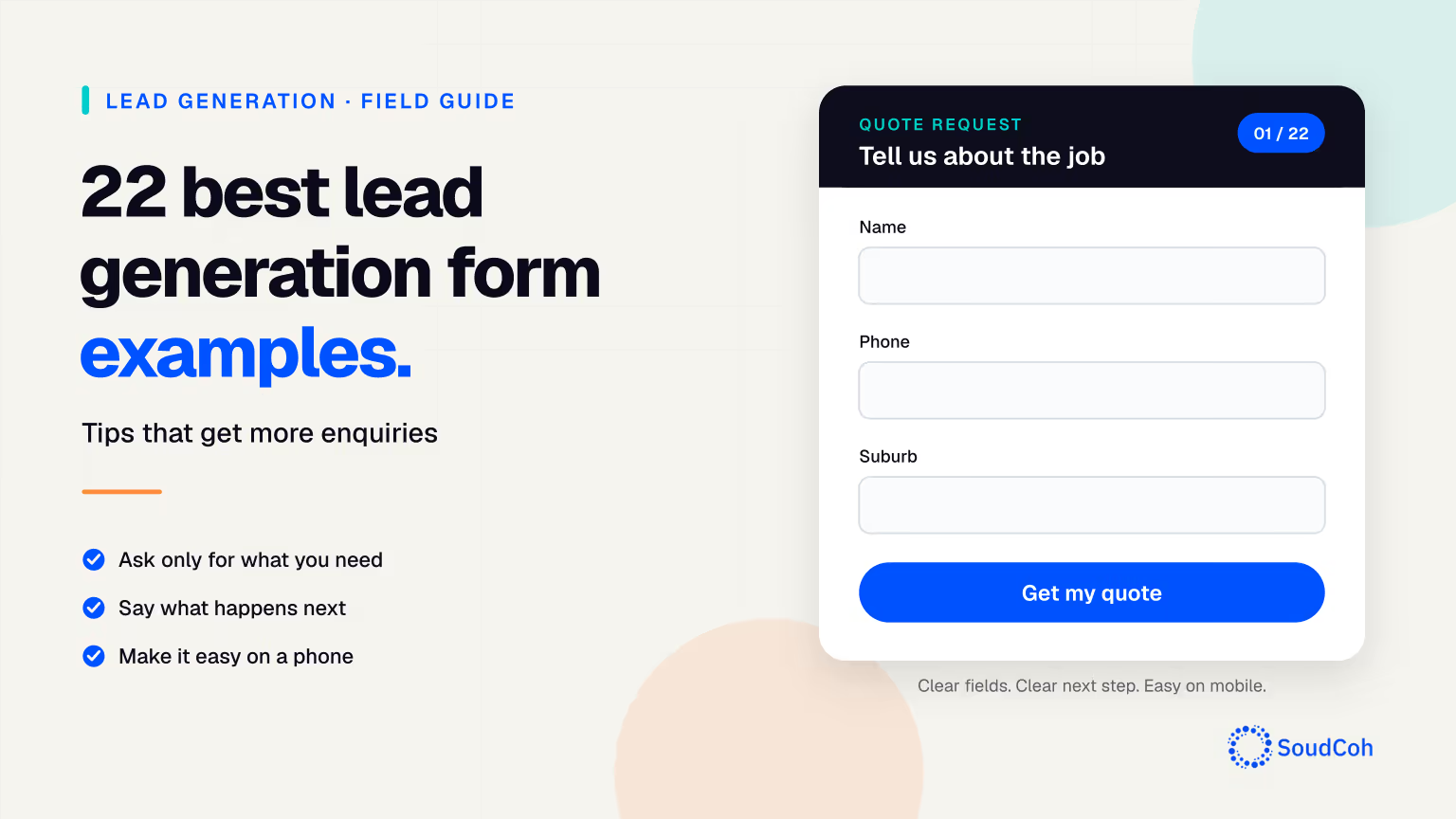
A lead generation form is the part of your website where a visitor becomes an enquiry. The forms that work best ask only for what you need to call back or quote, tell people what happens next, and are easy to fill in on a phone. Below are 22 lead generation form examples — the patterns we build and test on service-business websites — with a practical tip for each, followed by the rules that apply to every form.
What is a lead generation form?
A lead generation form collects the details you need to follow up a potential customer: usually a name, a way to contact them and something about what they need. On a trade or service website that might be a quote request or a call-back form. On a B2B site it might be a demo booking or a guide download.
The right form depends on how ready the visitor is to buy: someone with a burst pipe wants a phone number and a two-field form; someone researching agencies may happily give an email for a useful checklist. Your lead generation programme should connect that first form to the follow-up and booked work.
Quote and booking forms for service businesses
- Short call-back form. Name, phone and suburb, nothing else. Best for urgent or simple jobs. Tip: put the phone number beside it, because some people would rather call.
- Multi-step quote form. Step 1 asks the job type, step 2 the suburb, step 3 the timing, and contact details come last. Easy first questions get people started. Tip: show progress (“Step 2 of 4”) and keep each step to one or two questions.
- Emergency job form. A short form with a clear “Need someone today?” option and a click-to-call button. Tip: tell people when you’ll call back and keep the call button visible on mobile.
- Booking form with a time window. Lets customers pick a preferred day and a morning or afternoon window instead of an exact time. Tip: say the time is confirmed by phone so you’re not promising a slot you can’t keep.
- Photo-upload quote form. Lets people attach a photo of the leak, damage or space. Tip: make the upload optional so it never stops someone submitting.
- Service-area checker. The visitor enters a postcode or suburb first; if you service the area, the form opens. Tip: if you don’t cover the area, say so politely rather than collecting a lead you can’t serve.
- Rough-estimate form. Asks a few job details and explains the price range you’ll confirm. Tip: only show ranges you can stand behind.
- Property-details form. For cleaners, removalists and similar: property type, bedrooms, bathrooms, move date. Tip: use buttons or dropdowns instead of free-text boxes so it’s fast on a phone.
Forms for ads and landing pages
- Above-the-fold landing page form. On a Google Ads landing page, the form sits beside the headline so visitors don’t have to scroll. Tip: match the headline and form to the ad they clicked. This is part of practical conversion rate optimisation.
- Sticky mobile “Get a quote” bar. A bar fixed to the bottom of the screen that opens the form or calls. Tip: keep it small enough not to cover content.
- Google Ads lead form assets. Google lets people submit their details directly from an ad. Tip: send these leads straight into your CRM or inbox and call them quickly, because they never saw your website.
- Meta instant forms. Facebook and Instagram’s built-in lead forms, often pre-filled with the user’s details. Tip: add one qualifying question (job type or suburb) to filter out low-intent leads.
- LinkedIn Lead Gen Forms. Built-in forms for B2B campaigns, pre-filled from the member’s profile. Tip: use them for consultations or guides aimed at decision-makers, not for consumer services.
Collect what you need for the first call; get the rest on the phone.
Content and B2B forms
- Free audit or assessment request. Offer a review of the visitor’s current marketing, website or setup. Tip: say exactly what they’ll receive and how long it takes.
- Calculator with “email me the result”. A cost or ROI calculator that offers to send the result. Tip: show the result on screen first; the email is a bonus, not a gate. Our lead-to-job calculator follows the same useful-first principle.
- Guide or checklist download. A practical resource in exchange for an email. Tip: name the specific problem it solves in the button text.
- Event or webinar registration. Name, email and company only. Tip: send a calendar invite straight away.
- Newsletter sign-up. One field: email. Tip: tell people how often you’ll send and what they’ll get.
- Consultation booking with a calendar. The visitor books a time directly. Tip: ask one or two questions before the calendar so you arrive prepared.
Smarter form formats
- Conversational form. Questions appear one at a time, like a chat. Tip: keep the language plain and let people go back to change an answer.
- Exit-intent offer. A form that appears when someone is about to leave, offering something useful such as a checklist or a call back. Tip: show it once per visit and make it easy to close.
- Contact form with routing. A dropdown asks “New job, existing job, or something else?” and sends each to the right person. Tip: put new-job enquiries first, since they’re the ones you want to answer fastest.
Tips that apply to every lead generation form
- Ask for less. Every extra field is another reason to stop. Collect what you need for the first call; get the rest on the phone.
- Decide between phone and email. For service jobs, a phone number usually matters more; make it required and email optional, or the reverse, based on how you follow up.
- Use real labels above each field, not only placeholder text that disappears when people start typing.
- Make it easy on a phone: use the phone keypad for phone numbers, the email keyboard for email, and support browser autofill.
- Write the button as the outcome: “Get my quote” or “Request a call back”, not “Submit”.
- Say what happens next and when: “We’ll call you within business hours today.”
- Put trust right beside the form: reviews, licence numbers, guarantees or a short privacy note.
- Stop spam without punishing real people. Hidden spam traps and server-side checks are friendlier than hard puzzles.
- Send people to a proper thank-you page or message that confirms the enquiry was received.
- Track every submission as a conversion in Google Ads and Google Analytics, and check lead quality, not just how many came in. Improving lead quality also means routing and responding to each enquiry properly.
- Respond quickly. A great form is wasted if the enquiry sits unanswered.
- Test one change at a time so you know what actually helped.
A great form is wasted if the enquiry sits unanswered.
Common lead form mistakes
Asking for an address or budget before people trust you; long free-text boxes on mobile; a “Submit” button with no context; no confirmation after submitting; forms that break on some phones; not tracking which ad or page produced the lead; and leads landing in an inbox nobody checks.
Common questions about lead generation forms
How many fields should a lead generation form have?
As few as you need for the first follow-up — for most service businesses that’s name, phone and suburb or job type. Ask the rest on the call.
Are multi-step forms better than single-step forms?
Often for quote requests with several questions, because easy first steps get people started. For a simple call-back, a short single-step form is usually better. Test both.
Should I add a CAPTCHA to my form?
Try lighter spam protection first, such as hidden spam traps and server-side checks. Add a visible challenge only if spam is still getting through.
Should I ask for a phone number or an email?
Ask for whichever you’ll actually use to follow up. For urgent or local service jobs, that’s usually the phone.
How do I know if my form leads are tracked properly?
Submit a test enquiry and check it appears once — and only once — as a conversion in Google Ads and Google Analytics. Follow the full guide to checking whether your leads are tracked properly.
Questions and answers
What should a lead form button say?
Write the button as the outcome, such as “Get my quote” or “Request a call back”, rather than “Submit”.
Where should trust information go on a form?
Put trust right beside the form: reviews, licence numbers, guarantees or a short privacy note.